
How to Create an assignment tracker on google sheets (Step-by-Step Guide)

Updated: Feb 5
TL;DR: A Google Sheets assignment tracker helps college students stay organized by tracking assignments, deadlines, and priorities in one spreadsheet. This guide walks you step by step through setting it up, formatting it for efficiency, maintaining it weekly, and understanding its limitations. For students who want extra automation, Course Sync is a useful optional upgrade.
What Is a Google Sheets Assignment Tracker?
A Google Sheets assignment tracker is a customizable spreadsheet that allows students to track all their assignments, projects, and exams in one place.
Benefits include:
Seeing all deadlines at a glance
Sorting assignments by course, due date, or priority
Tracking progress visually
Accessing the tracker from any device
It’s free, flexible, and ideal for students who want full control over their workflow.
Why Students Choose Google Sheets
College students often prefer Google Sheets because it is:
Accessible and free – Only a Google account is needed
Customizable – Add columns, colors, checkboxes, and formulas
Device-friendly – Works on laptops, tablets, and smartphones
Simple to maintain – Easy to update weekly or daily
For beginners, Google Sheets strikes a balance between flexibility and usability.
Step-by-Step Guide to Setting Up Your Tracker
Step 1: Create a New Spreadsheet
Go to Google Sheets and select Blank
Name your file clearly (e.g., “Spring 2026 Assignment Tracker”)
Step 2: Add Essential Columns
In the first row, add these headers:
Column | Purpose |
Course | Class name (e.g., Biology 101) |
Assignment | Task title (essay, quiz, project) |
Due Date | Deadline for the assignment |
Status | Not Started / In Progress / Submitted |
Priority | Low / Medium / High |
Notes | Links, instructions, or reminders |
These headers form the foundation of a functional assignment tracker spreadsheet.
Step 3: Format Your Spreadsheet
Formatting improves clarity and helps you spot deadlines quickly.
Freeze Headers
View → Freeze → 1 row
Keeps column headers visible while scrolling
Conditional Formatting
Highlight overdue assignments in red: Format → Conditional Formatting → “Due Date < Today”
Optional: Completed assignments in green, upcoming in yellow
Add Dropdowns or Checkboxes
Data → Data Validation → List of items for Status column
Insert → Checkbox to track completion visually
Sort by Due Date
Data → Sort sheet A-Z on the Due Date column
Prioritizes approaching deadlines
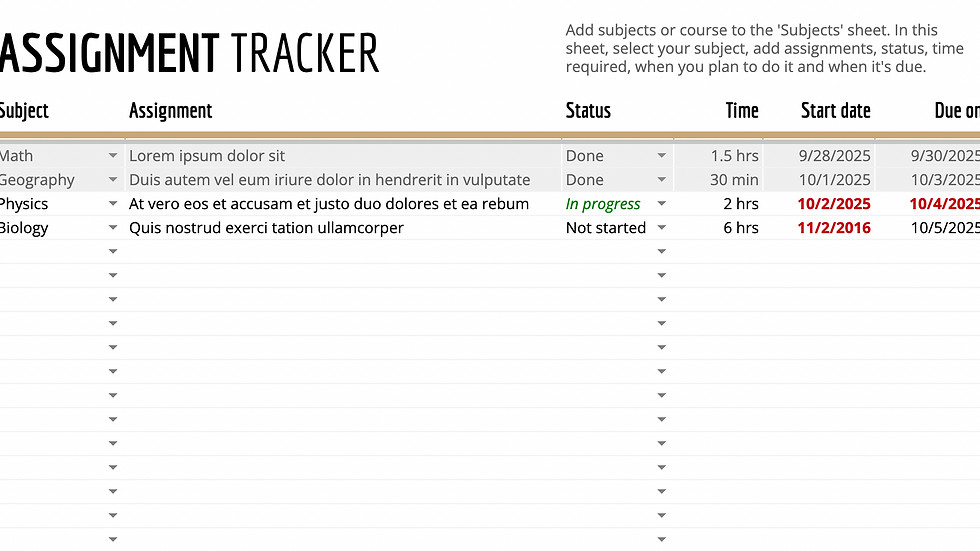
Step 4: Input Assignments
Add your tasks with:
Course name
Assignment title
Due date
Priority
Notes
Example: English 101 – Shakespeare Essay – March 15 – High Priority
This gives a clear overview of your responsibilities.
Step 5: Maintain Your Tracker
To keep your tracker effective:
Daily: Update completed tasks and check for new assignments
Weekly: Sort by due date, adjust priorities, add new assignments
Archive old tasks in a separate sheet if needed
Consistency ensures you never miss deadlines.
Example Use Cases for Students
Weekly Planning: Filter tasks due each week
Multi-Class Tracking: Group assignments by course
Group Projects: Track teammates, shared tasks, and notes
Exam Prep: Prioritize assignments with high grade weight
Limitations of Google Sheets
While effective, Google Sheets has some drawbacks:
Manual entry: Each task must be added manually
No automatic sync: Changes from school platforms aren’t imported
Limited reminders: No built-in notifications
Mobile usability: Not as smooth as dedicated apps
Minimal analytics: Requires formulas for tracking trends
These limitations sometimes lead students to explore automated tools.
Optional Upgrade: Course Sync
For students who want automation, Course Sync complements Google Sheets:
Automatic reminders for deadlines
Calendar view for planning study time
Smart prioritization of tasks
Cloud access across devices
Course Sync is optional, Google Sheets can still handle the basics effectively.

Wrapping Up
A Google Sheets assignment tracker is an excellent way for students to organize coursework and deadlines. By setting up the right columns, formatting effectively, and updating regularly, you can reduce stress and stay on top of assignments.
For additional automation or reminders, consider Course Sync as a lightweight upgrade.


Comments